

Overview
Set your site's visual identity by chatting — the agent previews brand directions, and you publish the one you want
The Design System studio is where you set your site's identity by talking to the agent. You describe the look you want, the agent proposes a brand direction, and you see it applied live across real components. Nothing changes your site until you click Publish. It is the brand counterpart of the Pages studio: the agent previews, you decide.
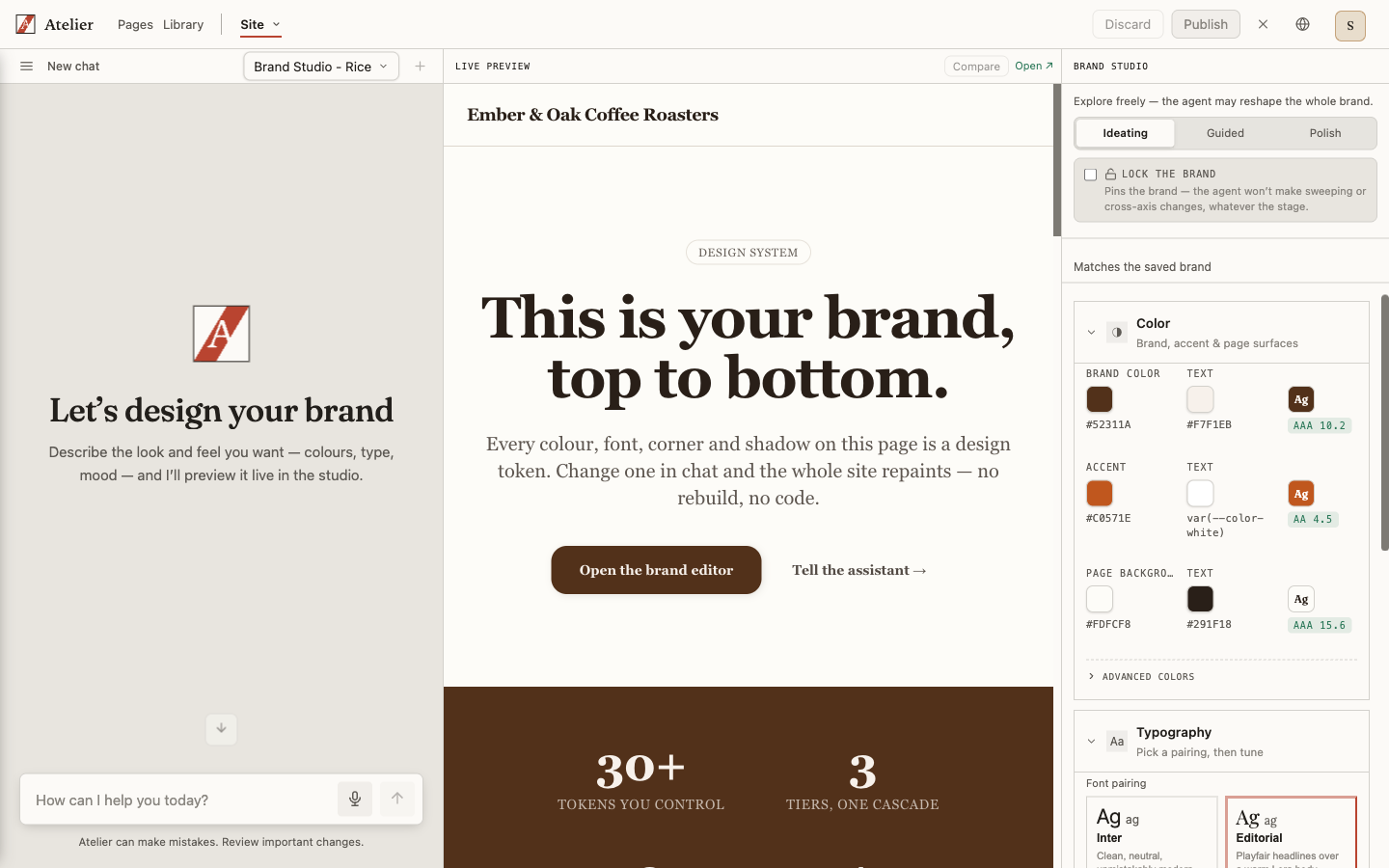
The agent never sets your brand on its own. It proposes a draft brand and renders it in the preview. Your site's brand changes only when you press Publish in the studio.
Open the studio
Open the console
Go to the Atelier console at /atelier.
Switch to the Design System studio
Pick Design System from the studio switcher in the top breadcrumb. The studio pane opens beside the chat with a live preview of your current brand.
Describe the identity you want
Tell the agent the feel you're after — for example, "a warm, editorial look for a neighbourhood bakery" or "clean and techy, deep blue." The agent proposes a brand direction and applies it to the preview.
How your brand is set
Your brand is a set of design tokens — colours, typography, and surface treatments — that every page and component reads from. The agent proposes values for these tokens and the preview reskins instantly so you can judge the result on real components, not swatches.
You refine in chat ("warmer accent", "more contrast on the headings", "try a softer surface") and the preview updates with each change. You can also start from a curated preset and adjust from there.
Because the whole site reads from these tokens, a brand change flows everywhere at once — every page, every component, your site chrome and login screen included.
Edit by hand
You don't have to do everything in chat. The studio's editor panel groups every choice into four cards, so you can find what you want without wading through raw settings:
- Color — your brand, accent, and page colours, each shown with a live contrast check.
- Typography — pick a font pairing from the gallery (each previewed in its real typeface), then set body text size and heading weight.
- Shape & depth — corner roundness, spacing density, and the shadow. The shadow is set by independent dials — distance, blur, strength, colour, and the direction it falls — rather than a fixed "style", so you (or the assistant) can say "softer", "bigger", or "light from the left" and only that one thing changes; the rest of the look stays put.
- Components — fine-tune individual elements like buttons and cards.
Each card leads with these high-level choices and tucks the precise per-token controls behind an Advanced section, so the full design system is there when you need it and out of the way when you don't. Every change previews live, and nothing is saved until you Publish.
The agent reaches for the same choices — ask for "the editorial pairing with softer corners" and it sets them for you. Edit in chat, by hand, or both.
Built-in accessibility checks
As the agent proposes colours, the studio checks them for legibility — text against its surface, and accent colours used as text or links — against WCAG AA contrast. If a combination fails, the studio surfaces an advisory warning so a low-contrast brand doesn't slip through. The agent uses the same feedback to steer toward legible choices — and it only tells you a colour pair passes when the measured ratio says so. If a change you asked for fails contrast, the reply names the ratio (for example 3.4:1, needs 4.5:1) and offers a fix.
Tip
Accessibility warnings are advisory — you stay in control. But they're there for a reason: a brand that fails contrast is hard to read for everyone.
Publish or discard
When the preview looks right:
- Publish saves the brand and creates a revision. The new identity goes live across your whole site immediately.
- Discard throws the draft away and keeps your current brand. You're asked to confirm first, so a published brand is never replaced by accident.
Because every publish creates a revision, your brand has a history you can fall back on.
Brand and pages
Pages always render with your published brand — there's no per-page colour or preset lever. You set the identity once, here, and every page stays consistent with it. If a page's colours aren't what you want, change them in the Design System studio, not on the page. See Pages always respect the brand.