

Overview
One shelf for every image and reusable block your site uses — edit an image once and every page updates
The Library is home to your site's reusable ingredients: media and reusable blocks.
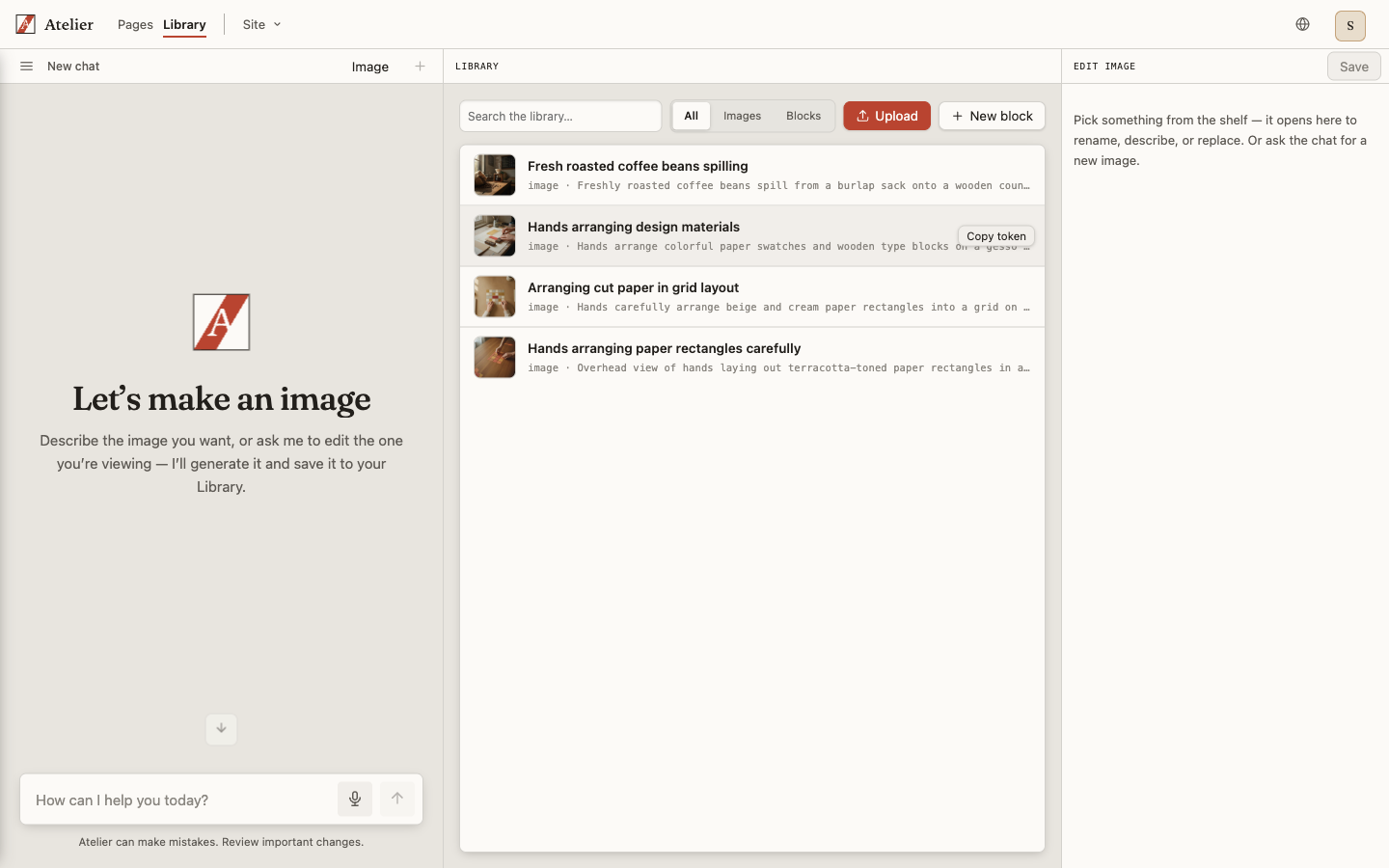
Browse the shelf
Open Library from the console at /atelier to see everything you have in one place. Every image you have uploaded or generated lives here, alongside the reusable blocks you can drop into pages. Think of it as the pantry for Fernway Botanical Studio — one place to keep the shop photos, the logo, and the seasonal banner you reuse across pages.
Open an image
Select any image and an editor rail opens beside it. From there you can:
- Rename it — give the file a friendly, findable name.
- Edit its alt text — write a short description of what the image shows, once, for accessibility. See alt text.
- Replace the file — swap in a new file while keeping the same reference.
- Delete it — remove an image you no longer need.
Replacing a file keeps its reference, so every page that uses the image updates at once. Swap the Fernway hero photo for a fresh one and each page showing it picks up the new photo — no page-by-page editing.
Generate and edit with AI
When an image provider is connected, an optional AI rail appears in the Library. From there you can generate brand-new images from a prompt and edit existing ones in plain language, right where your media lives. See generating and editing images with AI for the full walkthrough.
As always, the agent proposes and you decide. An AI edit produces a new image rather than overwriting the original, so you keep both unless you choose to replace.
Tip
Because images are reused by reference, the Library is the fastest place to make a change ripple across your whole site — fix one file, and every page that uses it follows.