

Overview
Your workspace for building the site by chatting — organised into studios, with a human-approval model at its core
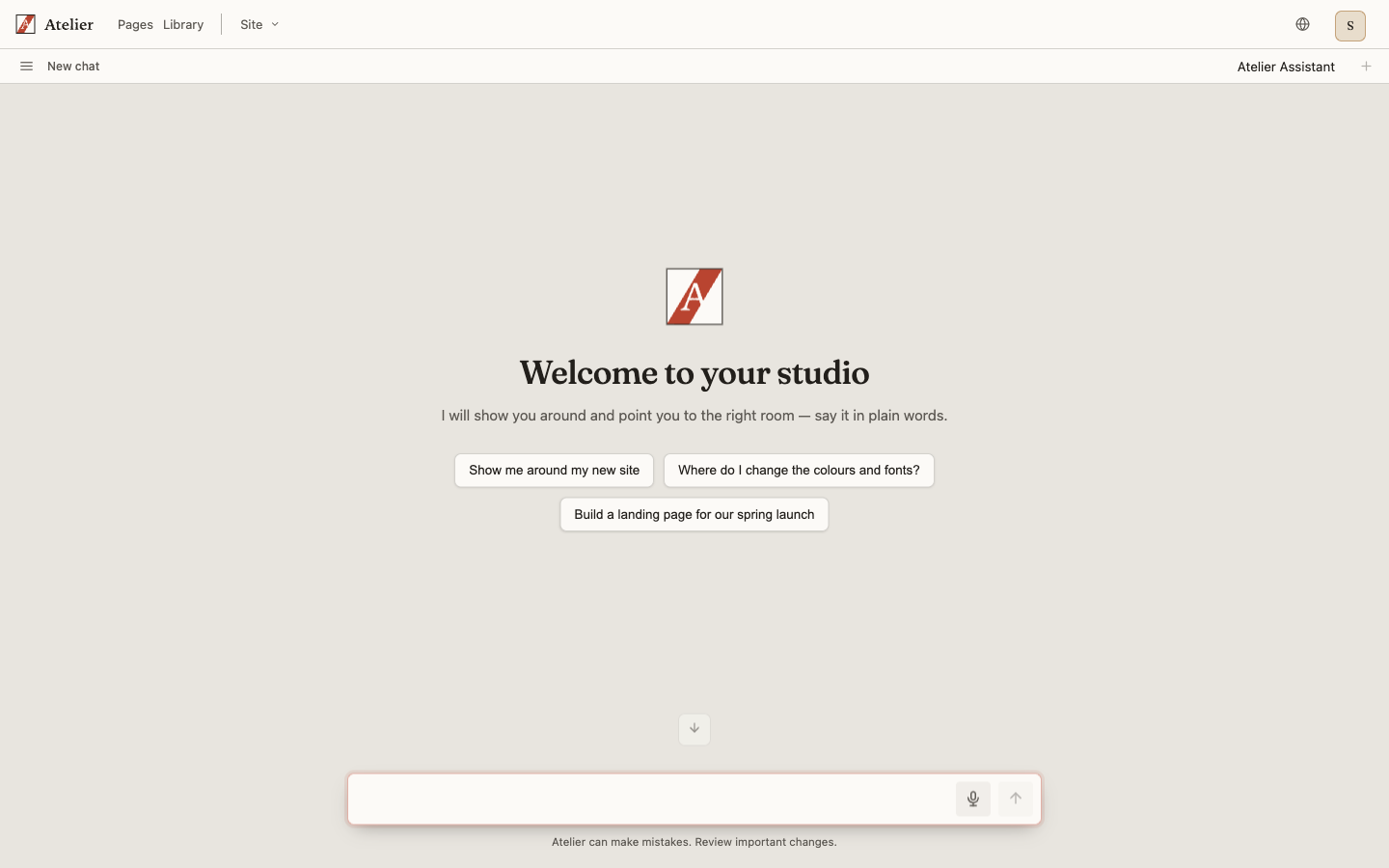
The console is where you run Atelier. It's a chat workspace at /atelier: you talk to an
agent, it does the work, and a live preview shows you the result. You're always in exactly
one studio — a focused workspace for one kind of task — and you switch between them as
your work changes.
Studios
A studio pairs a chat with the right agent and the right preview for one job. You move between studios from the top bar, and the Atelier wordmark always takes you home to the General chat.
General
The home studio for everyday content work — creating, updating, and finding content by asking. This is where the wordmark returns you.
Pages
Build pages section by section, rendered live on your brand.
Library
Your reusable ingredients — media and reusable blocks. Upload, organise, and generate images.
Design System
Set your site's visual identity. The agent previews brand directions; you publish.
Globals
Shape the site header, footer, identity, and menus. The agent previews the chrome; you publish.
In the top bar, Pages and Library sit alongside a Site menu that groups the site-wide studios — Design System and Globals — since you visit those less often. Each studio keeps its own chat history and its own new conversations, so switching studios doesn't tangle your work. When a studio offers more than one agent, a picker at the top of the chat lets you choose which one a new conversation uses.
Finding your way around
How the studio switcher, deep links, and jumps to your live site fit together.
How a conversation works
You describe what you want in plain language. The agent replies with one short framing sentence and gets to work — it doesn't narrate every step. As it works:
- The preview updates live so you see the real result, not a description of it.
- The agent works on an unsaved draft, never your live site.
- You keep refining in chat, or edit the draft directly in the studio's structured editor.
Each conversation is a thread. When its work is done — for example when you publish a new page — the thread wraps up and you start a fresh one for the next change.
Conversations & threads
Threads, the agent picker, voice dictation, and wrapping up finished work.
The approval model
The console is built around one rule: the agent proposes, you approve. Nothing reaches your live site without an explicit action from you.
The agent has no power to publish on its own. Brand directions and page layouts stay drafts until you press Publish.
Drafts and previews keep the agent fast while you stay the publisher, and any step that would change your site pauses for your approval first.
AI proposes, you approve
The full picture: drafts, Publish and Discard, and approval pauses.
Moving between the console and your site
The console is your workspace; the live site is what it produces. A jump to the live site
opens a new tab (so your unsaved draft and open conversation stay put), while moving
around inside the workspace stays in the same tab. The globe in the top bar opens your
live site any time, and on the live site an operator sees a small Edit in Console pill to
jump back. The account menu (your avatar, top-right) also has a System door to the
technical back office at /admin — you rarely need it; the console is home.
Your account
The identity card, managing your account in-console, and the System door.
What you can do here
Connect your AI
On a fresh install the onboarding wizard walks you through connecting a provider and choosing your models.
Set your brand
Open the Design System studio and describe the identity you want. Preview, then publish — it flows through to every page.
Build pages
Under Pages, click New page, give it a title, and you land in the Pages studio ready to build. Describe the page and the agent composes it from the component library, live on your brand.
Manage content
In the General studio, ask the agent to create, update, or find content. The same approval model applies to anything that changes your site.