

Overview
Build a page by chatting with the agent, preview every change live, and publish only when you're happy
The Pages studio is where you build a page by talking to the Atelier agent. The agent proposes a layout, you see every change rendered live in your site's brand, and nothing goes live until you click Publish. It is the page counterpart of the Design System studio: the agent previews, you decide.
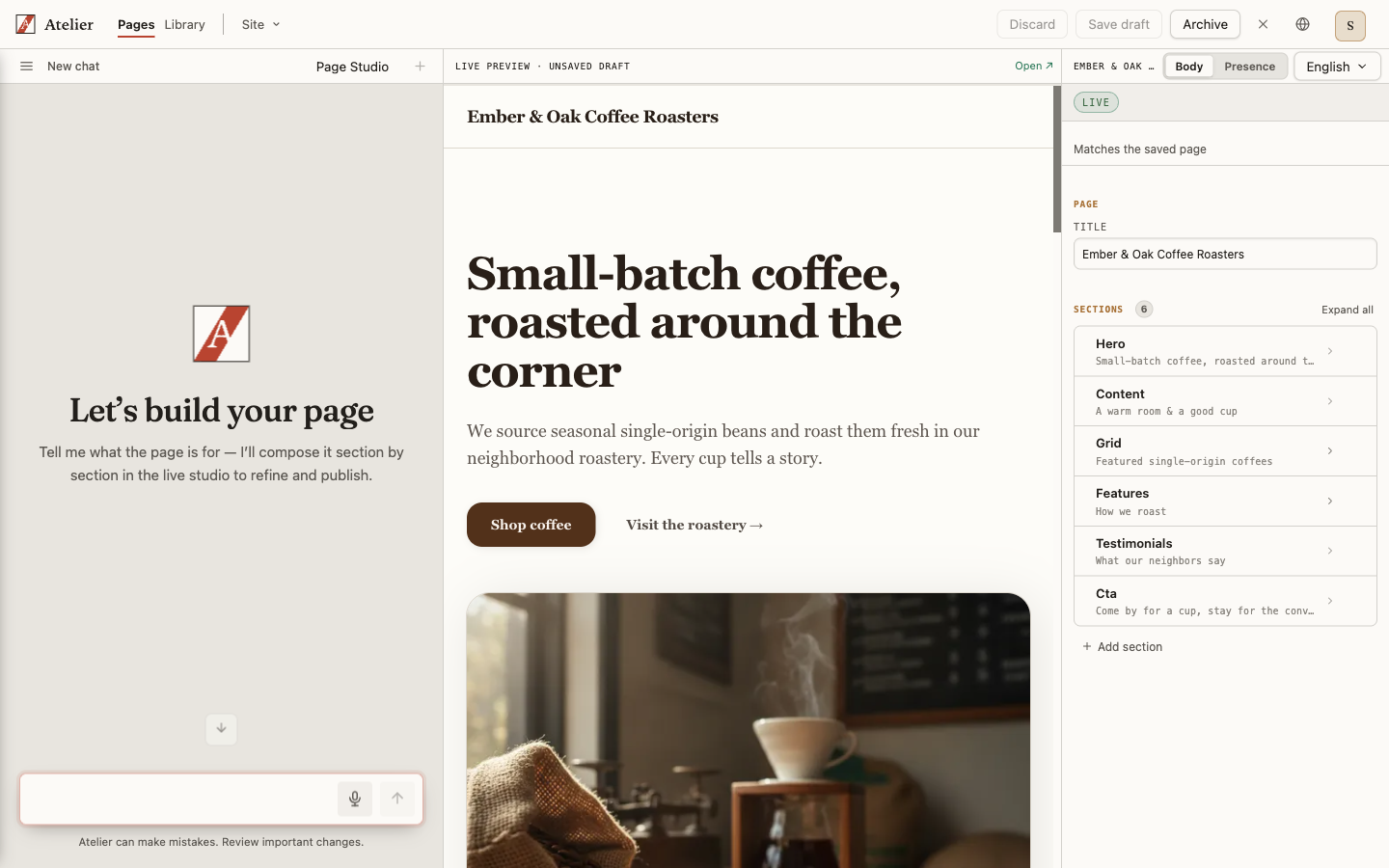
The agent never publishes on its own. It edits an unsaved draft held in your browser. Your page goes live only when you press Publish in the studio.
Open the studio
The studio opens whenever you create a page or open an existing one.
Open the console
Go to the Atelier console at /atelier.
Create or open a page
Under Content in the sidebar, click New page, give it a title, and pick its type — a landing page (built from sections: hero, features, calls to action) or a blog post (a written article in a fixed reading layout). (To keep working on an existing page, open it from the All pages list instead.) The studio pane opens beside the chat, showing a live preview.
Describe the page
Tell the agent what you want — for example, "Build a landing page for a neighbourhood coffee shop." The agent replies with one short framing sentence and applies its work to the preview.
A page's type is fixed when you create it. A landing page and a blog post are built from different things — sections versus an article body — so one cannot be turned into the other, by you or by the agent. If you picked the wrong one, create a new page of the right type; the studio shows the current type under the page title.
How a page is built
You and the agent edit the same draft. The agent works in incremental section operations — it adds a hero, then a features section, then a call to action — and each operation re-renders the live preview. It composes from a curated component library broad enough to build marketing, company, and news/blog sites. You can keep refining in chat ("make the hero headline punchier", "add a stats section after the features") or edit the draft yourself in the structured editor.
The structured editor lists the page's sections. For each section you can:
- Add, remove, and reorder sections.
- Edit each section's props, including enum controls for tone and variant.
Every edit — from chat or from the editor — updates the same draft and re-renders the preview immediately.
Pages always respect the brand
The preview renders with your site's live brand — the design tokens, colours, and chrome set in the Design System studio. A page cannot override the brand: there is no per-page colour or preset lever. This keeps every page consistent with the identity you established once.
Tip
If the colours aren't what you want, change them in the Design System studio, not per page. The change flows through to every page automatically.
One writer at a time
When you open a page in the studio, Atelier hands you the pen for that page. If the same page is already open somewhere else — another browser tab, or a teammate — that session holds the pen instead, and your studio shows a banner naming who has it and when they started:
- "Alex is editing this page in content, since 2:14 pm." — someone else holds the pen.
- "You're editing this page in another tab (opened 2:14 pm)." — it's you, elsewhere.
Click Take over to move the pen to this studio. The other session immediately loses it and can no longer save.
Take over discards unsaved changes in the other session. If the pen is held by your own other tab, switch to it and Publish (or save your draft) first — anything unsaved there is lost the moment you take over here.
Tip
The pen follows the page, not the conversation. Open the same page in a second tab and you'll be asked to take over — even when it's the same chat. Keep one tab per page to avoid taking over from yourself.
Publish or discard
When the draft looks right:
- Publish saves the page as a node, creates a revision, and gives you its URL. The published page renders chrome-free at its own address.
- Discard throws the draft away. You're asked to confirm first, so an unpublished page is never wiped by accident.
Re-opening a published page in the studio loads its current content as a fresh draft, so you can iterate and publish again.
Publishing a brand-new page wraps up the conversation. Once the page is live, that chat is finished — it stays in your sidebar (marked Done) so you can re-read it, but you start a new thread for your next change. This keeps each conversation focused and avoids running up usage on a thread whose work is done. You can choose Keep editing if you're not done yet, and any thread can be wrapped up (or reopened) from its ⋯ menu.
Header & footer menus
Manage your navigation yourself in the Navigation & Pages studio — links that track your pages, nest as deep as you like, and publish site-wide
Component library
The curated set of sections the page agent composes — broad enough to build marketing sites, blogs, and news sites without bespoke components